

Fix Full /boot Partition on Linux Mint

If you get a warning on Linux Mint that /boot is either full or disk space is low, the cause of the problem is likely that this partition has filled up with kernel updates.
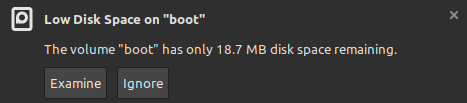
The kernel is the core part of the operating system and lives on the /boot partition. Updated kernel versions arrive all the time together with your regular Linux Mint updates. New kernels are automatically added to your system but by default the old kernel versions are not removed. Eventually the old versions consume all the space.
To view the currently installed list of kernels go to the Linux Mint update manager. You can access this by going to the Linux Mint logo in the bottom left ("start" menu) and typing "Update Manager". Or you can click the update manager shield icon on the task bar:

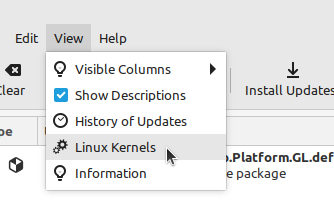
Choose "Linux Kernels" from the "View" menu:
The resulting dialogue box shows the series of kernel versions available to be installed in a column on the left. Here kernel version series 5.15 though 6.8 are shown. Click on each of these numbers in turn. Look in the centre column of the table for where it says "Installed".
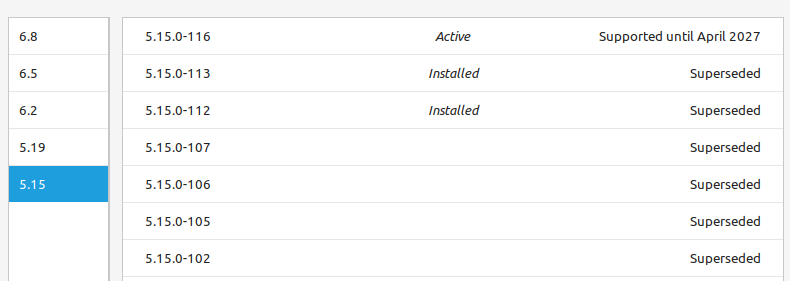
The kernel version you are currently using is listed as "Active" and should be left alone. Any kernel version other than the active one may be removed as you wish to make space on the /boot partition. You might optionally like to leave the kernel version prior to the active one in place in case something goes wrong with the active version. In which case you can roll back to the previous version. This is not essential however if you are very short of space.
Click on the kernel versions that are listed as "Installed" and you will get a "Remove" button. Simply click this to remove the kernel. You will then receive additional space on your /boot partition and the problem should be solved.
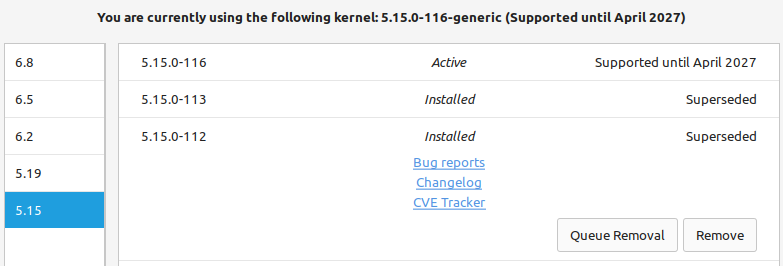
A slightly confusing aspect of the interface is it shows all Linux kernel versions that are potentially available to you and the great majority of these do not have a "Remove" button because they are not installed. Only where the centre column says "Installed" is that specific kernel actually on your system.