How to Take a Screenshot with the Owon SDS1102 Oscilloscope
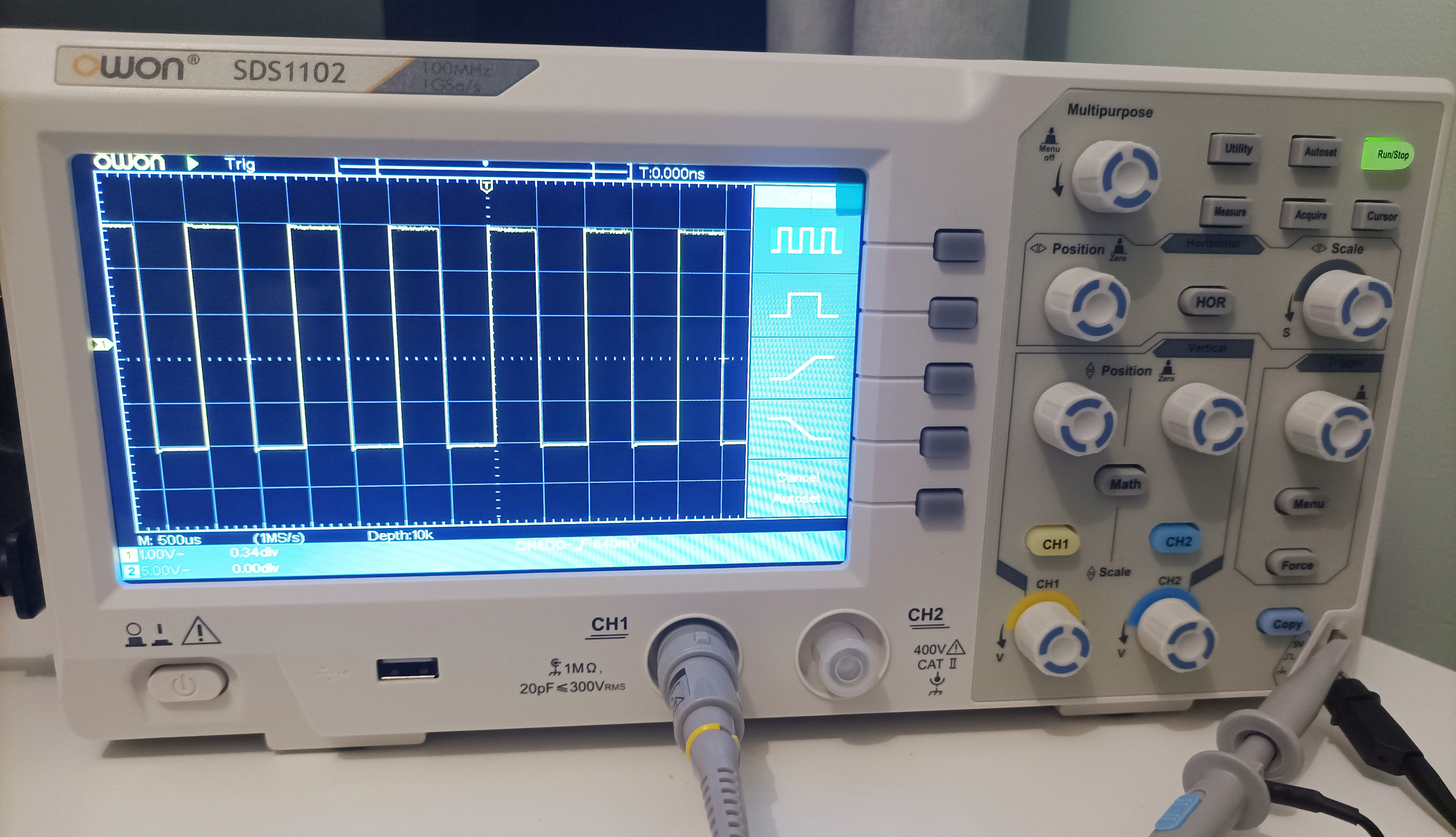
The manual for the Owon SDS1102 oscilloscope is not terribly helpful as to how you take a screenshot of the display. It does however support the feature and it can be achieved with the following steps:
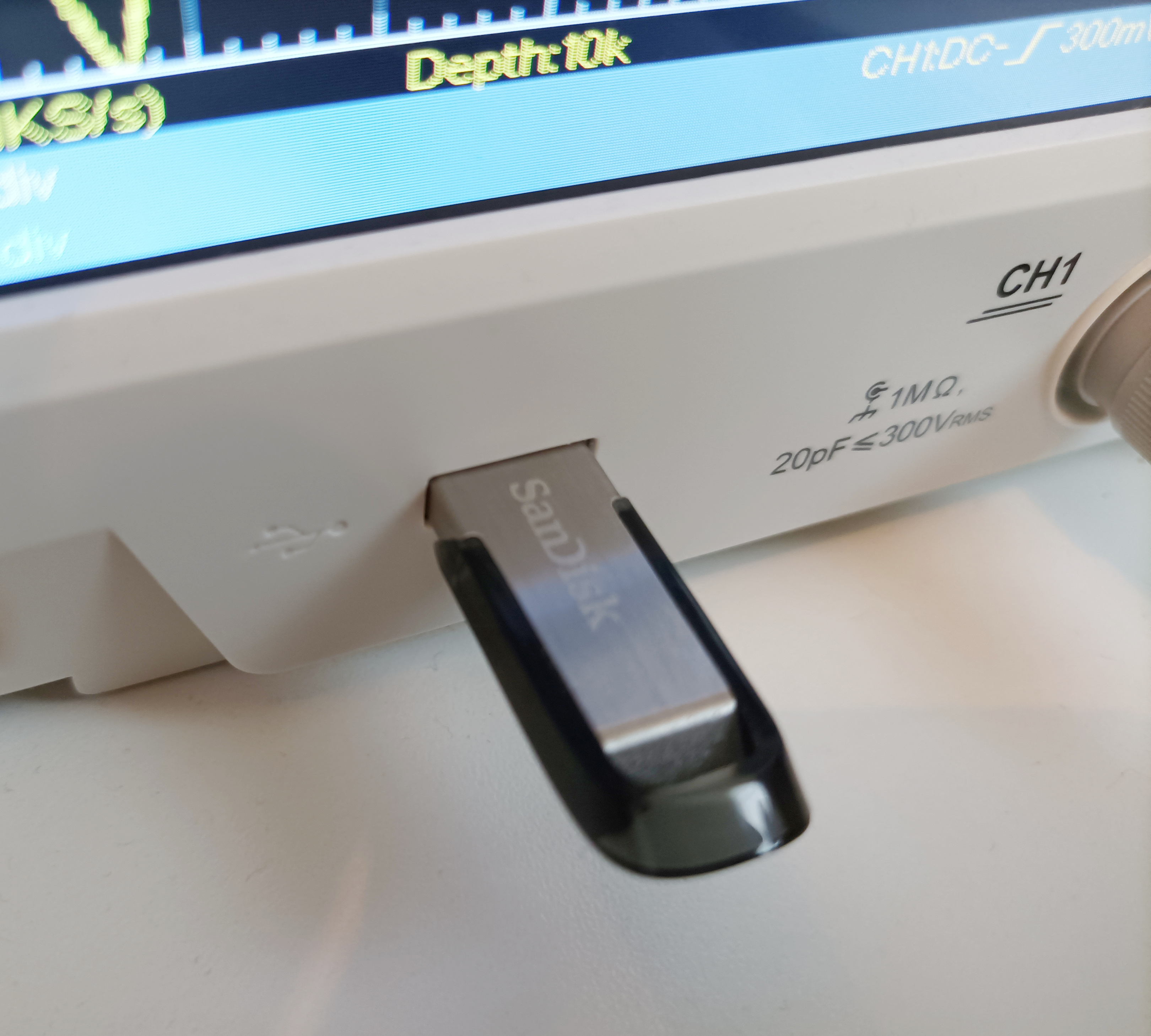
Insert a VFAT formatted USB stick into the front facing USB connector.
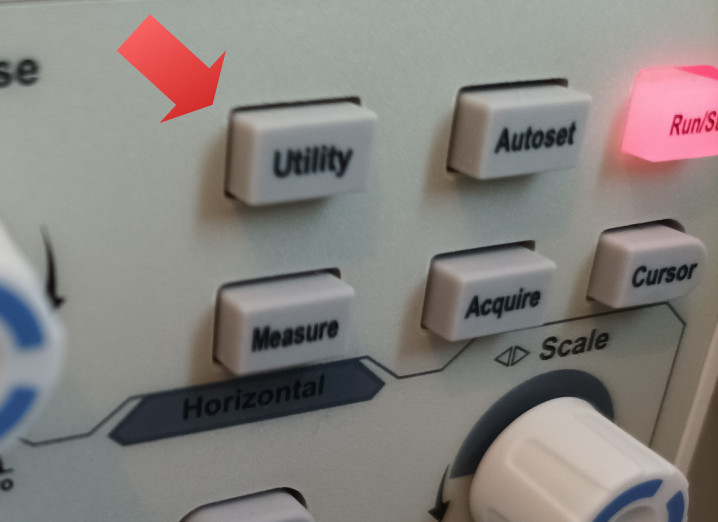
Press the "Utility" button:
Check it says "Configure" immediately beneath "Function". If it does not, press the physical button to the immediate right of the menu item (the top button) repeatedly until the menu item reads "Configure".
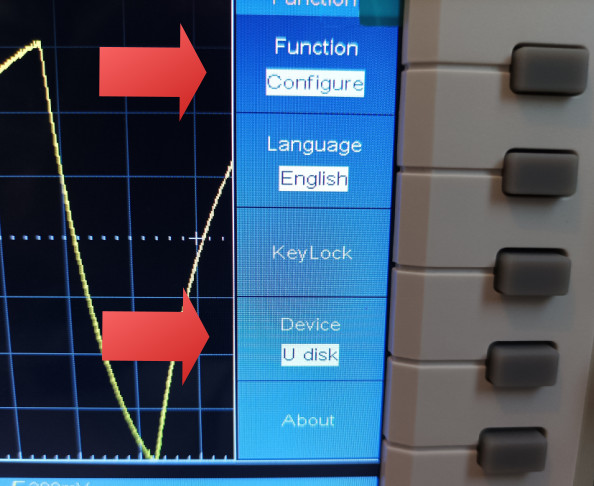
On the same screen, check under the "Device" menu option that it says "U disk". If it does not, press the 4th physical button from the top next to the text repeatedly until it reads "U disk".
Now press the top button again until it reads "Save" under "Function".
Now check under "Type" that it says "Image". If it does not, press the 2nd physical button from the top repeatedly until it says "Image".
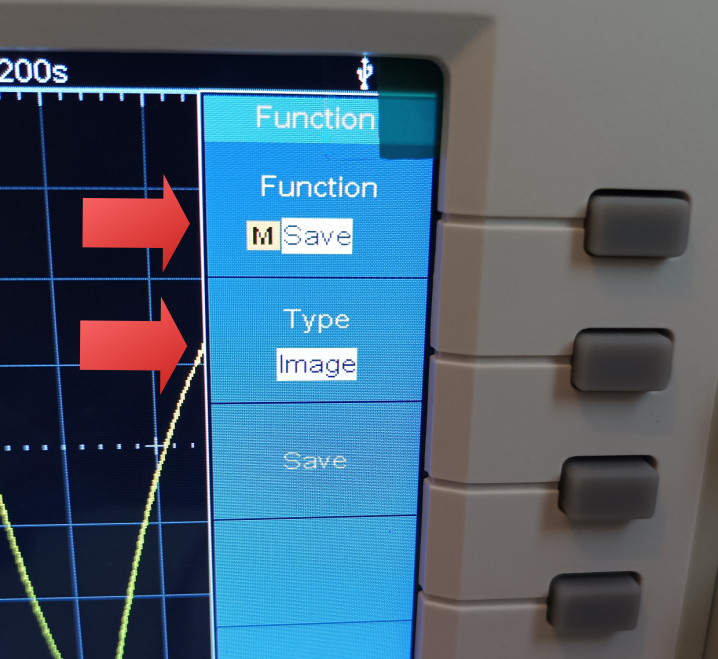
You can now save the waveform currently on screen to the USB stick by choosing "Save", which is the 3rd physical button.
You are now prompted to enter a filename. As there's no physical keyboard, it's easiest not to do this and just accept the default. This is done by highlighting the return key on the virtual keyboard and clicking it.
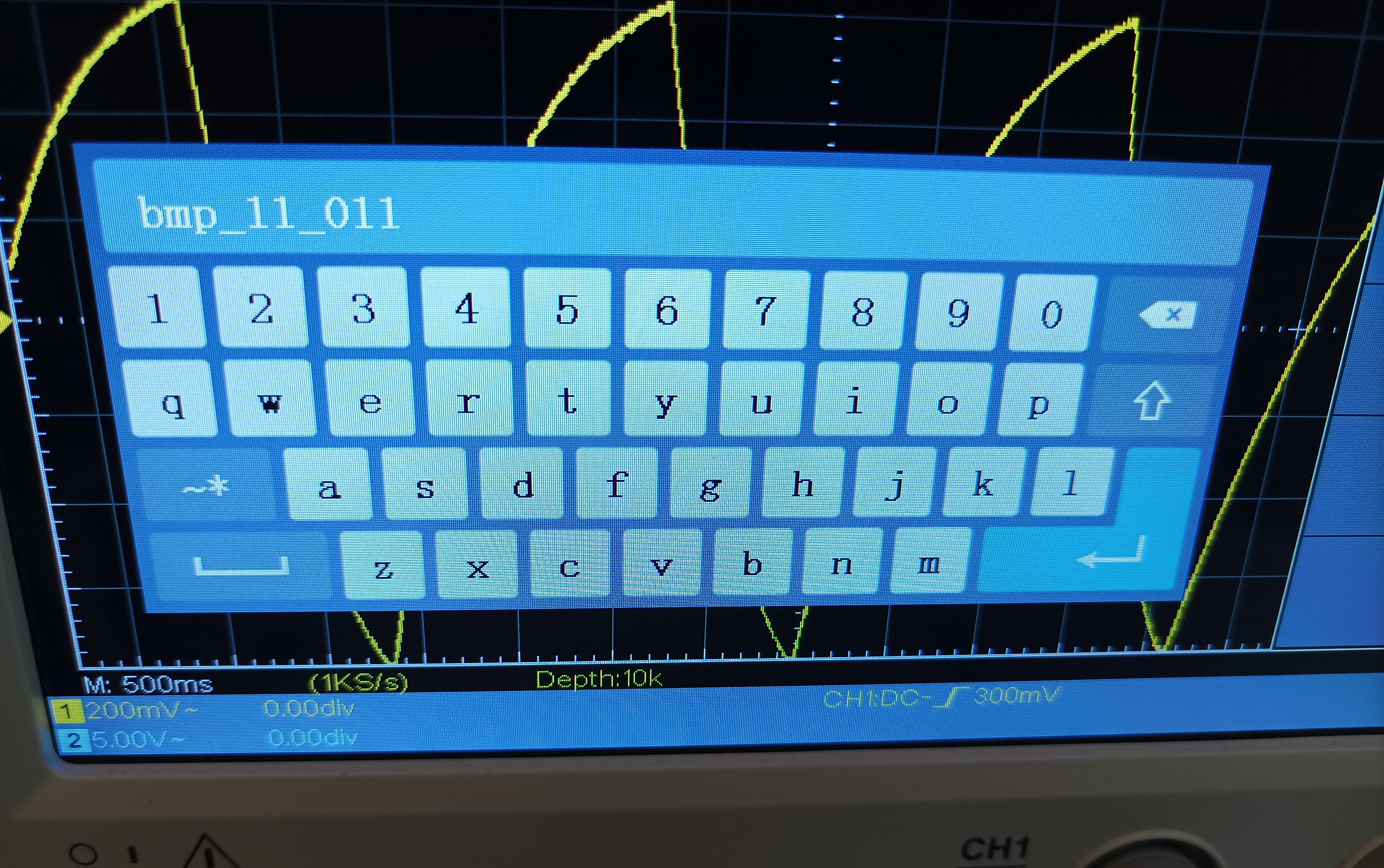
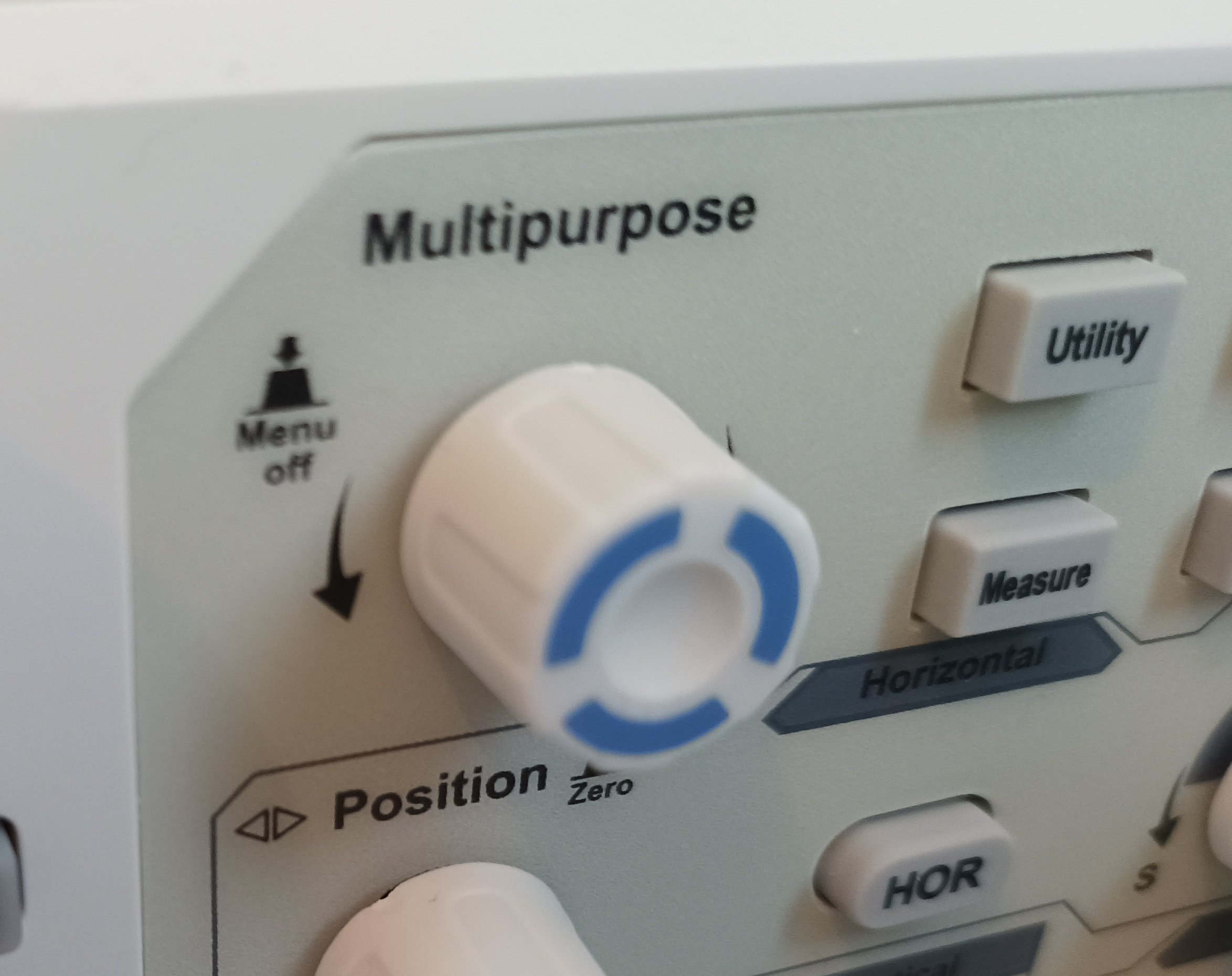
Use the "multipurpose" dial to select the "return" key. Now press in the multipurpose dial to "click". The image should now save to the USB Stick.
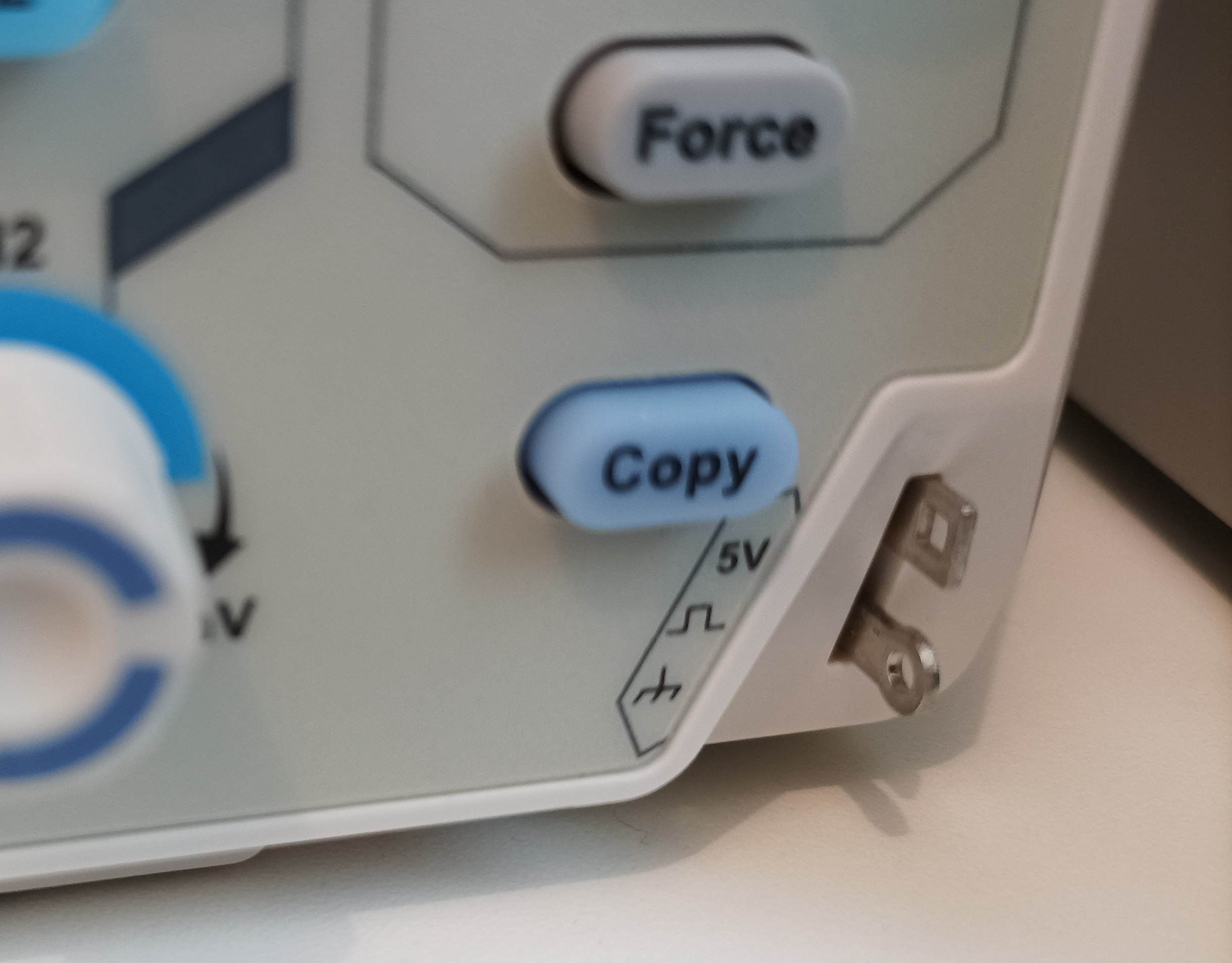
With these options selected, you can now get fast access to the save screenshot feature by pressing the physical "copy" button.