

Fixing a Raspberry Pi Stuck in the Wrong Resolution
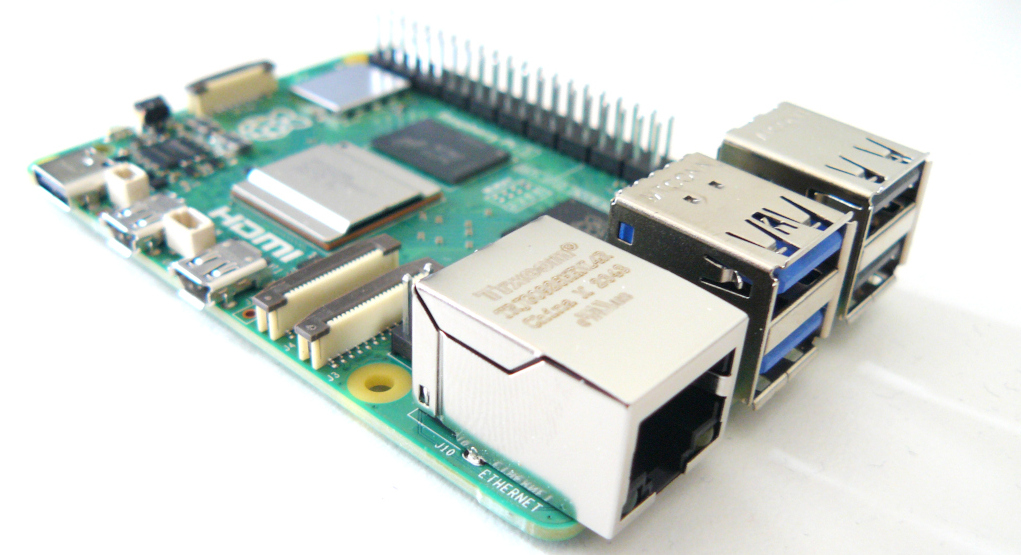
This was written with reference to a Raspberry Pi 5 running the Trixie version of Raspberry Pi OS
If a Raspberry Pi decides to lock itself to 1024x768 resolution, the likely problem is that it never got the EDID (Extended Display Identification Data) message from the television or monitor. This is an announcement the TV makes over the HDMI cable to tell the Pi what resolutions it supports. If the Pi doesn't get the message it defaults to 1024x768.
In the first instance you could could try checking the HDMI cable is plugged in firmly, try the 2nd HDMI port on the Pi or try buying a new cable and see if that solves the problem. If that doesn't work it's possible to explicitly set the correct resolution at boot time, which is detailed below.
Decoding EDID Messages
You can confirm the problem is caused by EDID messages by decoding it like this using the edid-decode tool which is available in the repo:
This assumes the TV is connected by cable to the HDMI port nearest the power connector. Do this:
sudo apt-get install edid-decode
cat /sys/class/drm/card?-HDMI-A-1/edid | edid-decode
If this says:
EDID of 'stdin' was empty.
Then that that means that specific HDMI port never got any message.
It should instead give you a huge long list of resolutions and capabilities of the attached TV. If it says something like this then the port did get the EDID message:
cat /sys/class/drm/card?-HDMI-A-1/edid | edid-decode
edid-decode (hex):

00 ff ff ff ff ff ff 00 3c ad 00 37 00 00 00 00
0a 12 01 03 80 10 09 78 0a 68 37 a4 54 48 9a 25
0f 4a 4c 3f ef 80 d1 00 d1 c0 81 19 90 59 01 01
01 01 01 01 01 01 01 1d 80 18 71 1c 16 20 58 2c
.....
   DTD 5: 1920x1080i 50.000000 Hz 16:9 28.125 kHz 74.250000 MHz (16 mm x 9 mm)
                 Hfront 528 Hsync 44 Hback 148 Hpol P
                 Vfront 2 Vsync 5 Vback 15 Vpol P Vfront +0.5 Odd Field
                 Vfront 2 Vsync 5 Vback 15 Vpol P Vback +0.5 Even Field
......
And more....
Solutions
On my TV it never seems to get the message if the TV is switched on prior to the Pi. If the TV is switched on after the Pi then it does work and automatically switches to the correct resolution. You could try turning the TV off and then on again and see if that causes the Pi to get the EDID message. If it gets the message it will switch to the correct resolution for the TV.
If you can't solve it, it is possible to force the Pi into the correct resolution at boot.
Manually Setting the TV/Monitor Resolution
One way this can be achieved is to edit this file which contains the kernel command line parameters the Pi uses at boot:
sudo nano /boot/firmware/cmdline.txt
Note on older Pis, this was at /boot/cmdline.txt but it's now moved.
What you will see is one long line. Append this to the end of the line (with a space before it):
video=HDMI-A-1:1920x1080@60D
If you reboot, the Pi should be locked into HD resolution regardless of what the TV said.
The above assumes the TV will be connected to the HDMI port nearest the power connector and that it will be set to standard HD resolution (1920x1080) at 60Hz which will often work on most TVs. If you know the resolution and frequency of the TV or monitor, you can change it to the relevant numbers, if the Pi supports it. However, I would start with HD resolution to prove that everything is working as expected.
Manually Setting the EDID Message
A more sophisticated method is manually setting the EDID message from the TV that the Pi should have received.
If you can get the Pi to receive the message at some point but its just intermittent (as demonstrated by the Pi switching to the correct TV resolution or by using the above instructions to list out the EDID message) then you can capture the message to a file at the point when it works and replay the file every time the Pi boots.
Make sure the EDID message has been received (by checking as above). The below captures it to a file. You need to capture the raw binary message, not the human readable decoded version. It is placed into a location that the firmware will be able to read on boot.
Do this as root:
mkdir -p /lib/firmware/edid
cat /sys/class/drm/card?-HDMI-A-1/edid > /lib/firmware/edid/tv.edid
The file /lib/firmware/edid/tv.edid should now contain the TV EDID message. Check the size is bigger than zero. On my TV it's a 256 byte file. The message is in binary and will look like rubbish if listed.
To get the kernel to read it at boot:
sudo nano /boot/firmware/cmdline.txt
And add this to the end of the big long line in the file (separated by a space). Don't manually set the resolution at the same time as using the EDID message. Do only one or the other:
drm.edid_firmware=HDMI-A-1:edid/tv.edid
Which will tell the Pi to substitute the file for the EDID message on the HDMI port nearest the power connector. When rebooted, the Pi should select the most appropriate resolution from those available for the TV.
HDMI Audio
A problem I havn't quite solved completely is HDMI audio. If the Pi doesn't get the EDID message, it doesn't seem to set-up the HDMI audio. Even if the Pi subsequently gets the EDID message (e.g. by switching the TV off/on) or manually setting the message the HDMI audio doesn't automatically work.
You can see where the Pi thinks the audio is going by doing:
wpctl status
which is status for WirePlummer which is used to configure PipeWire
PipeWire is the new audio server replacing PulseAudio on older Pis.
Here under 'sinks' we see 'Dummy Output' which means it cannot see any audio device and is just sending the audio output nowhere at all.
Audio
 ├─ Devices:
 │ 48. Built-in Audio [alsa]
 │ 49. Built-in Audio [alsa]
 │
 ├─ Sinks:
 │ * 35. Dummy Output [vol: 1.00]
If the TV has sent the EDID message we should now have an HDMI audio device but we first need to restart WirePlummer for some reason to get it to acknowledge that it now exists:
systemctl --user restart wireplumber
And now we get the HDMI Audio device for the TV
Audio
 ├─ Devices:
 │ 48. Built-in Audio [alsa]
 │ 49. Built-in Audio [alsa]
 │
 ├─ Sinks:
 │ * 54. Built-in Audio Digital Stereo (HDMI) [vol: 1.00]
The audio should then work. Incidentally the volume control in the top right failed for me after restarting WirePlummer. The volume can be set to max like this (where 54 is the number that appears next to the HDMI device) which will be different for your TV.
wpctl set-volume 54 1.0
The part of this I haven't yet solved is how to get WirePlummer to refresh automatically when the TV is turned on without having to do it manually. Perhaps another web page can help you with that!